

Step 1 · Install SimHub
Install or update SimHub using the official download link.

BRG · Setup guide
Choose your screen. For the 5-inch dashboard, also choose Lovely or Ferrari 296.
Install or update SimHub using the official download link.
Open the official device-driver page and follow its VoCore LCD installation instructions. This applies to all three screen sizes.

Open SimHub on your PC and connect the dashboard using its USB cable.

Open Devices and choose Import device from file.

Select the extracted BRG ROUND DASH (1).shdevice file and click Open. The .shdevice file configures the device; it is not the dashboard layout itself.

Open BRG ROUND DASHBOARD, enable Connect to specific screen and choose your connected screen. Its identifier may differ from the screenshot.
Download the current Lovely Plugin installer from the official link, run it and restart SimHub. Enable the plugin when prompted and select Show in left main menu.
In SimHub > Lovely Plugin > Dashboard Manager, install Lovely Dashboard Round. Follow the installer prompts. The screenshot is a reference from an earlier interface.

In Devices, open your BRG device and select Lovely Dashboard Round as its current dashboard.
Follow the official Lovely documentation to assign the dashboard action triggers you need. Start your game and check the screen.
Install or update SimHub using the official download link.
Open the official device-driver page and follow its VoCore LCD installation instructions. This applies to all three screen sizes.
Open SimHub on your PC and connect the dashboard using its USB cable.
Open Devices and choose Import device from file.
Select the extracted BRG DASH (1).shdevice file and click Open. The .shdevice file configures the device; it is not the dashboard layout itself.

Open BRG DASH, enable Connect to specific screen and choose your connected screen. Its identifier may differ from the screenshot.

Download the current Lovely Plugin installer from the official link, run it and restart SimHub. Enable the plugin when prompted and select Show in left main menu.
In SimHub > Lovely Plugin > Dashboard Manager, install Lovely Dashboard. Follow the installer prompts. The screenshot is a reference from an earlier interface.
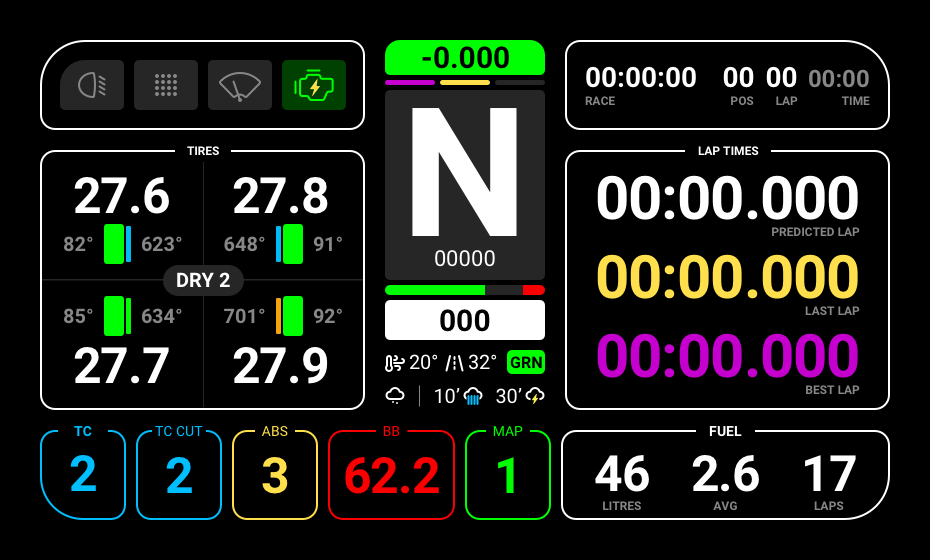
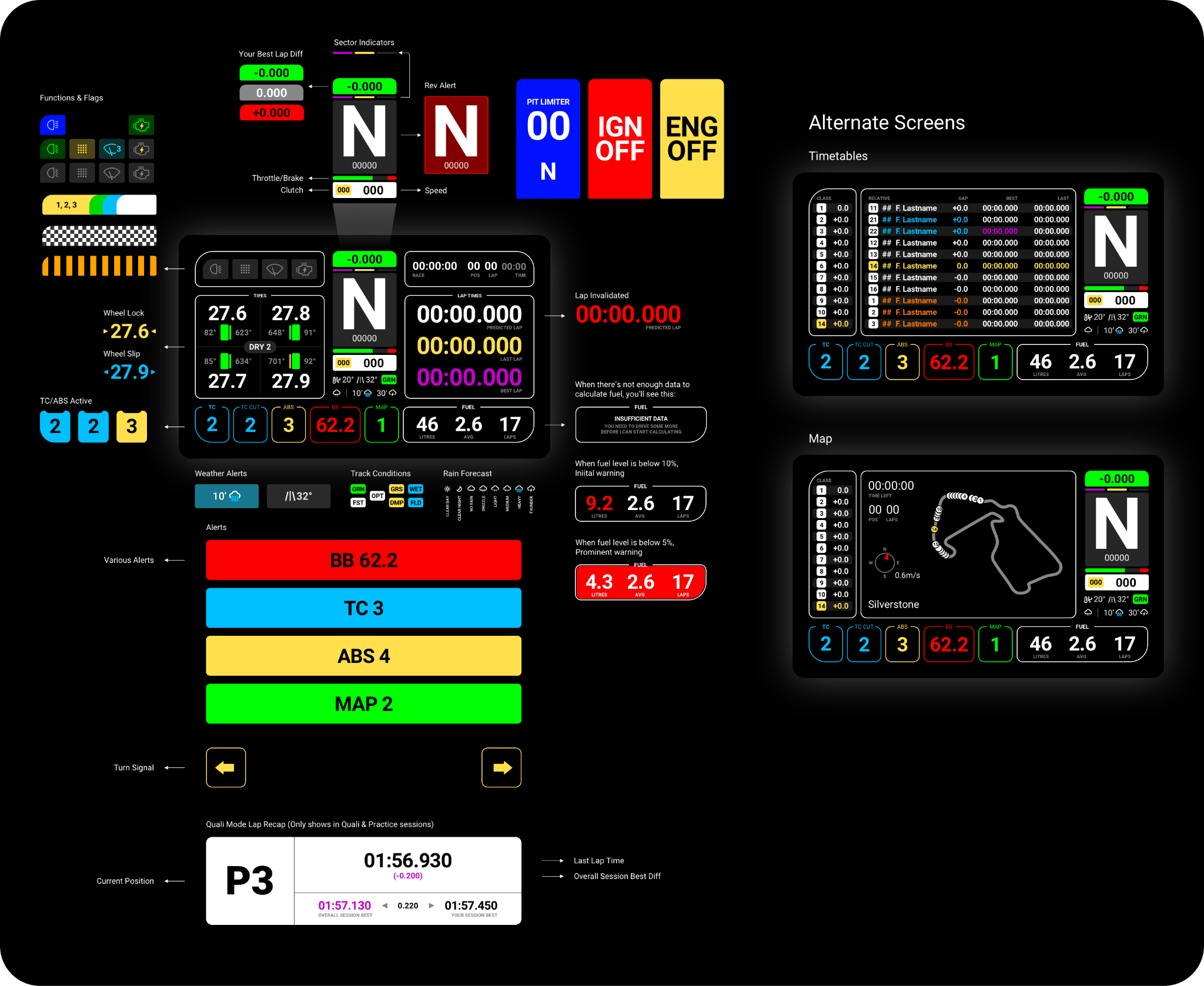
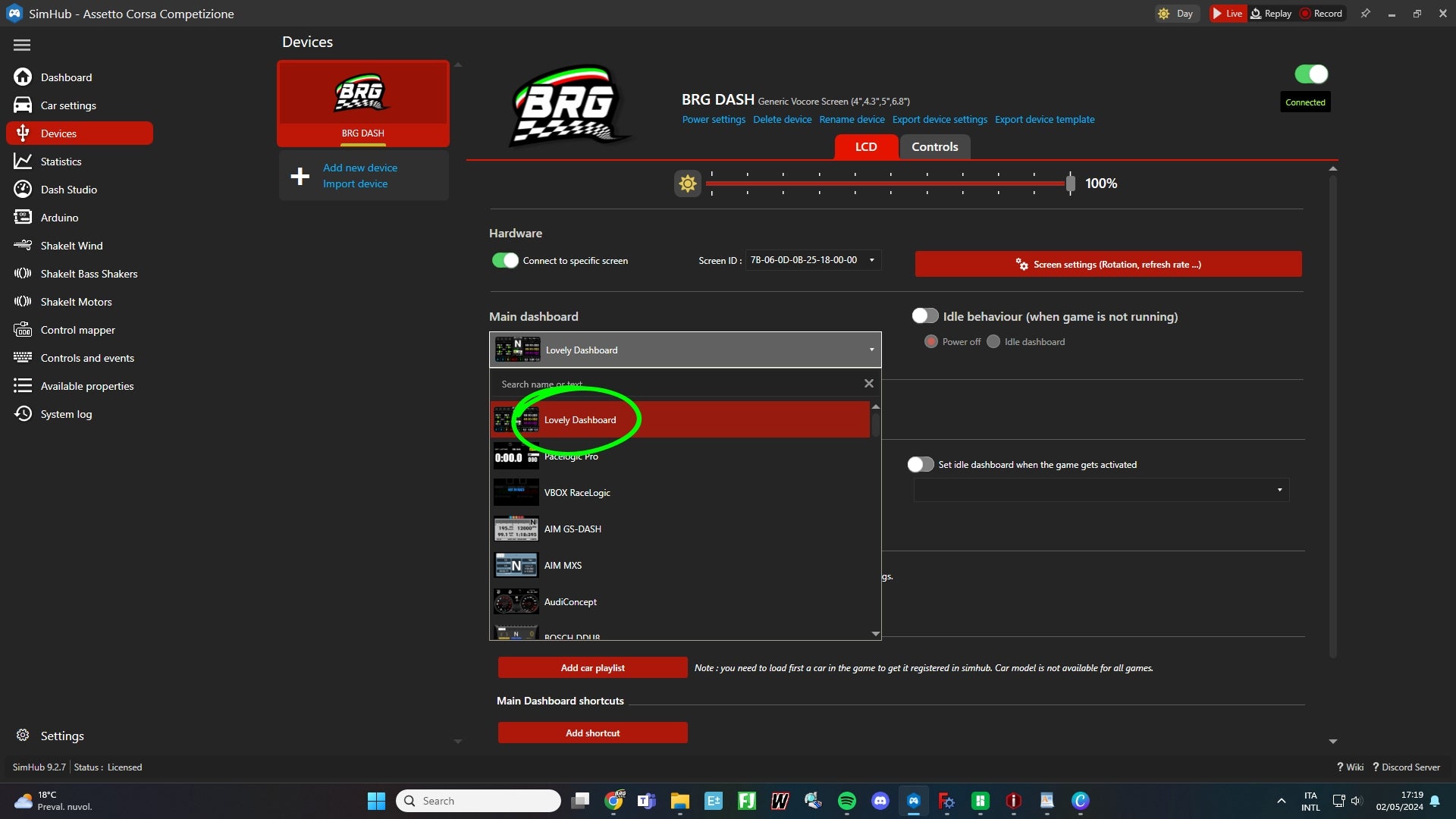
In Devices, open your BRG device and select Lovely Dashboard as its current dashboard.
Follow the official Lovely documentation to assign the dashboard action triggers you need. Start your game and check the screen.
Install or update SimHub using the official download link.
Open the official device-driver page and follow its VoCore LCD installation instructions. This applies to all three screen sizes.
Open SimHub on your PC and connect the dashboard using its USB cable.
Open Devices and choose Import device from file.
Select the extracted BRG DASH (1).shdevice file and click Open. The .shdevice file configures the device; it is not the dashboard layout itself.
Open BRG DASH, enable Connect to specific screen and choose your connected screen. Its identifier may differ from the screenshot.
Open Arduino > My Hardware and wait for the LED controller to connect. This section is only for the 5-inch dashboard.

Open Arduino > RGB LEDs > Profiles manager. Choose Import profile and select the extracted BRG DASH .ledsprofile file.

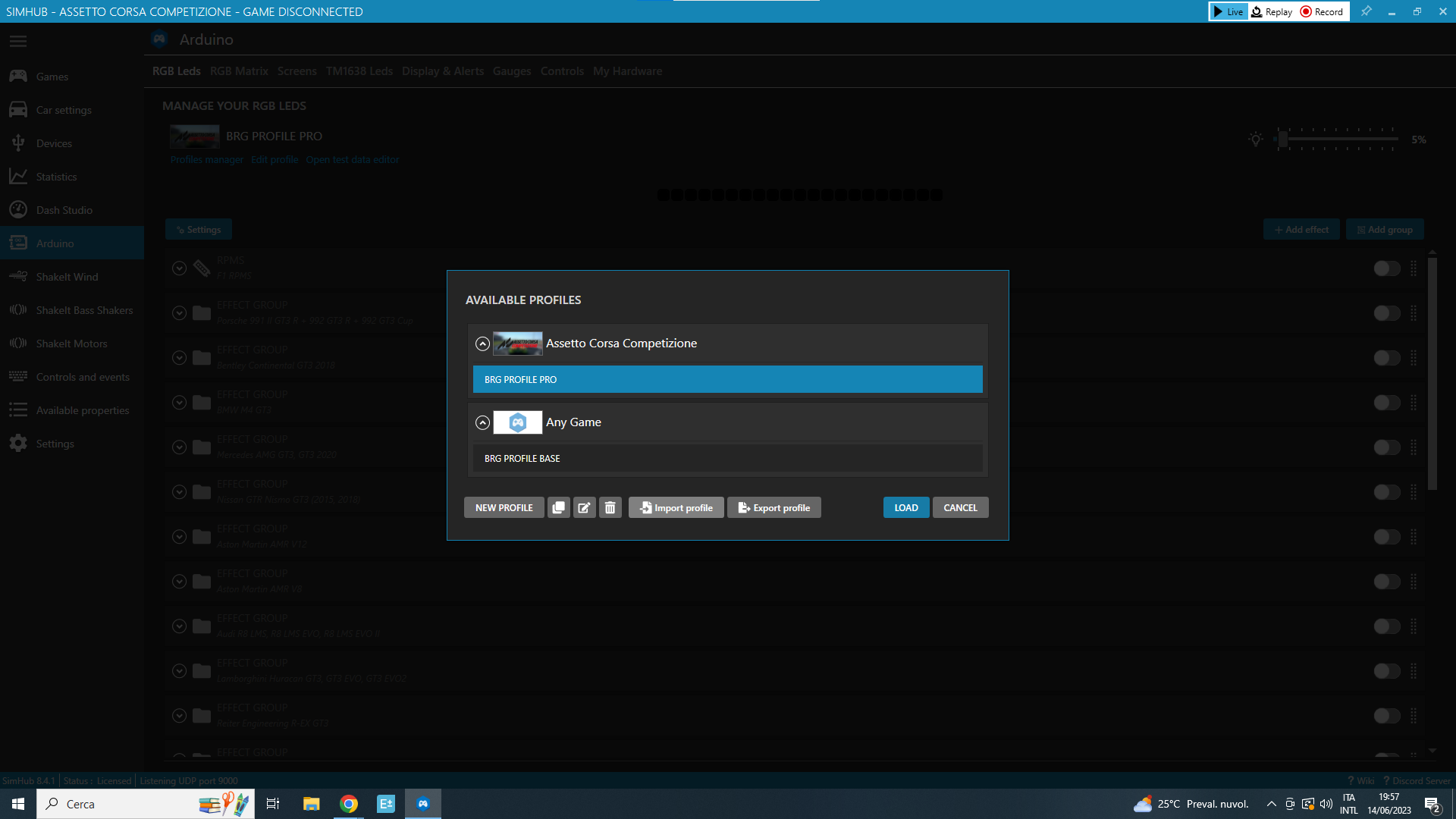
Select BRG DASH LEDS PROFILE and click Load. The 3.4-inch and 4-inch devices do not need this LED profile.
Download the current Lovely Plugin installer from the official link, run it and restart SimHub. Enable the plugin when prompted and select Show in left main menu.
In SimHub > Lovely Plugin > Dashboard Manager, install Lovely Dashboard. Follow the installer prompts. The screenshot is a reference from an earlier interface.
In Devices, open your BRG device and select Lovely Dashboard as its current dashboard.
Follow the official Lovely documentation to assign the dashboard action triggers you need. Start your game and check the screen and LEDs.
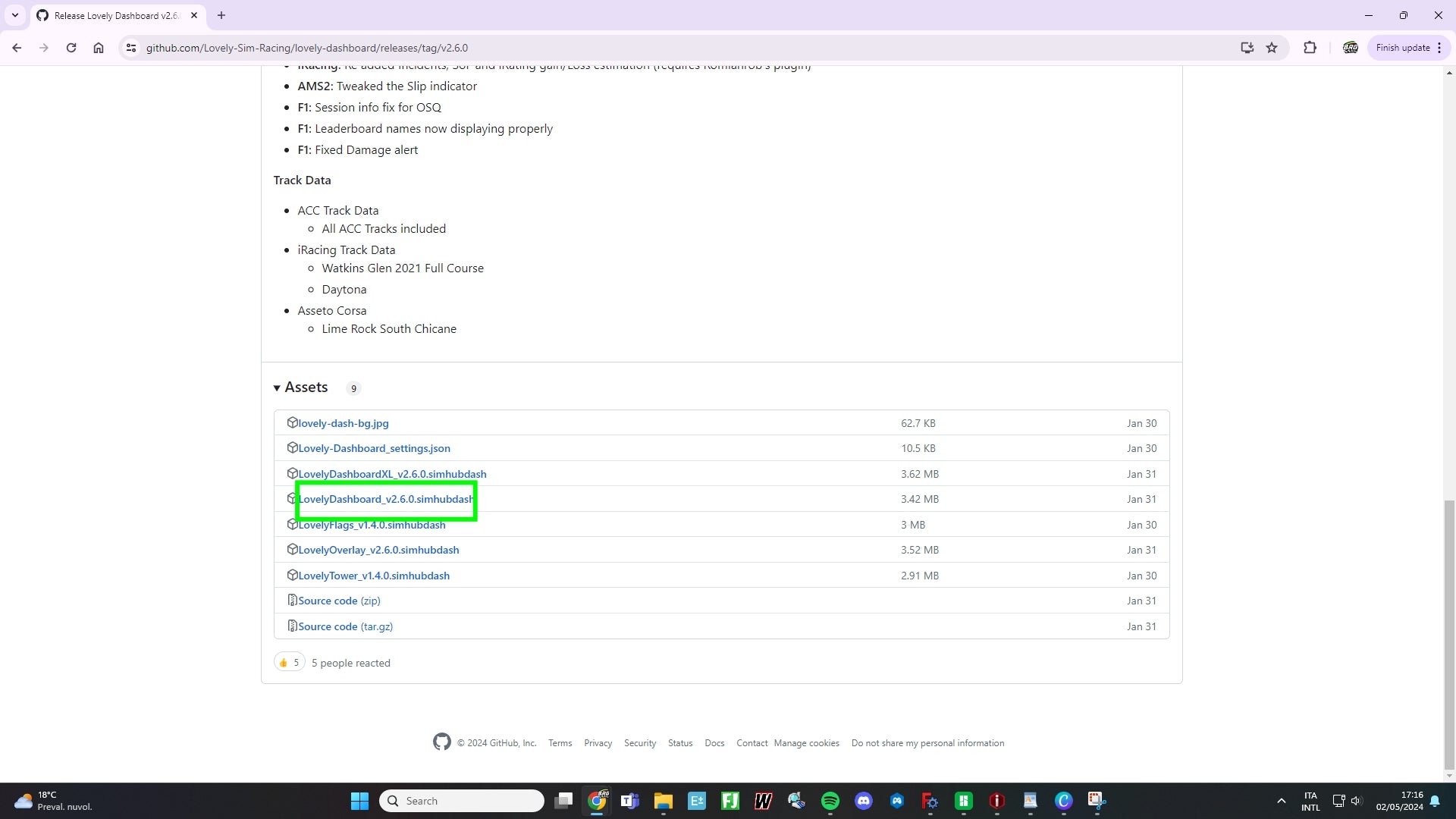
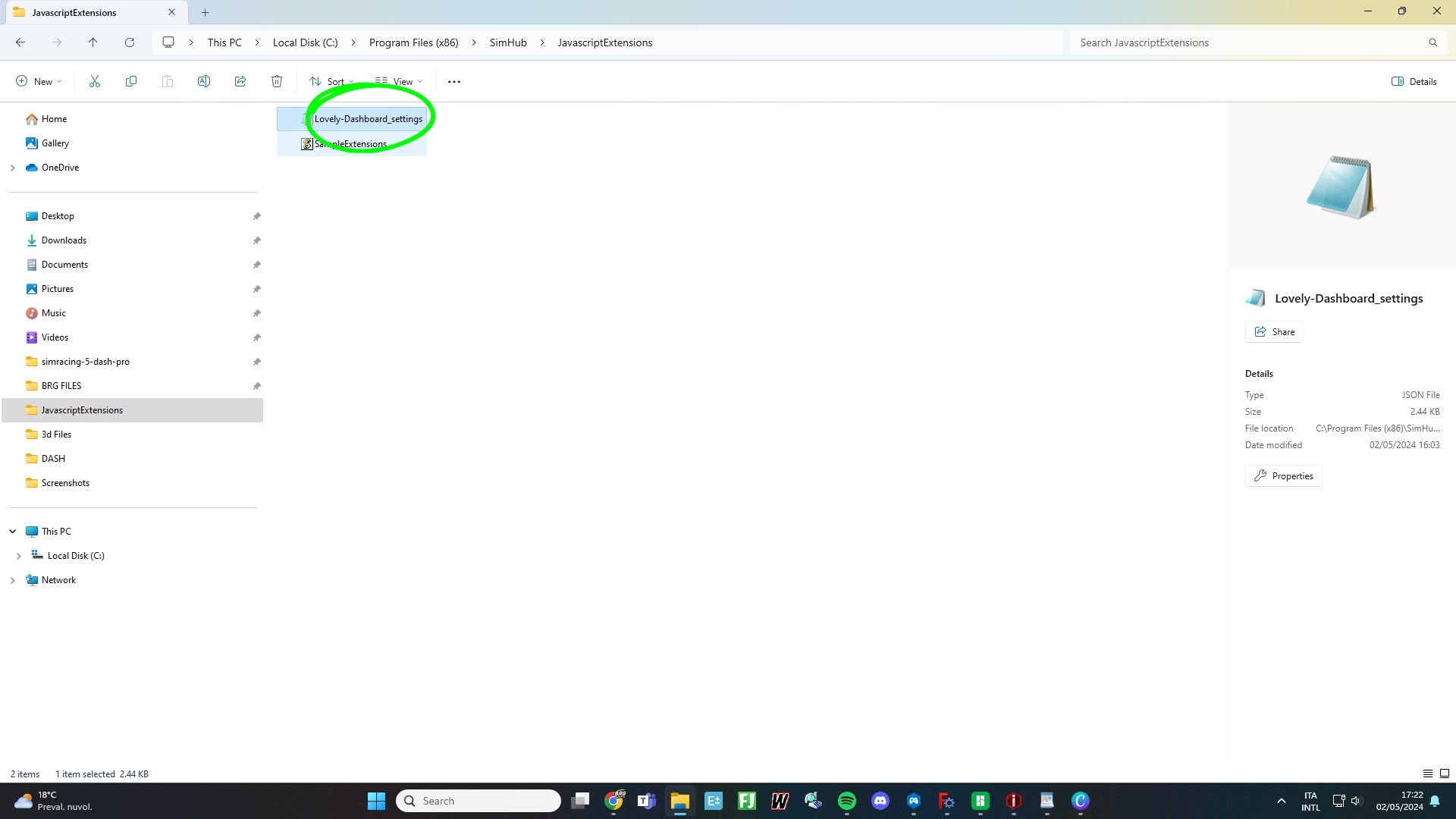
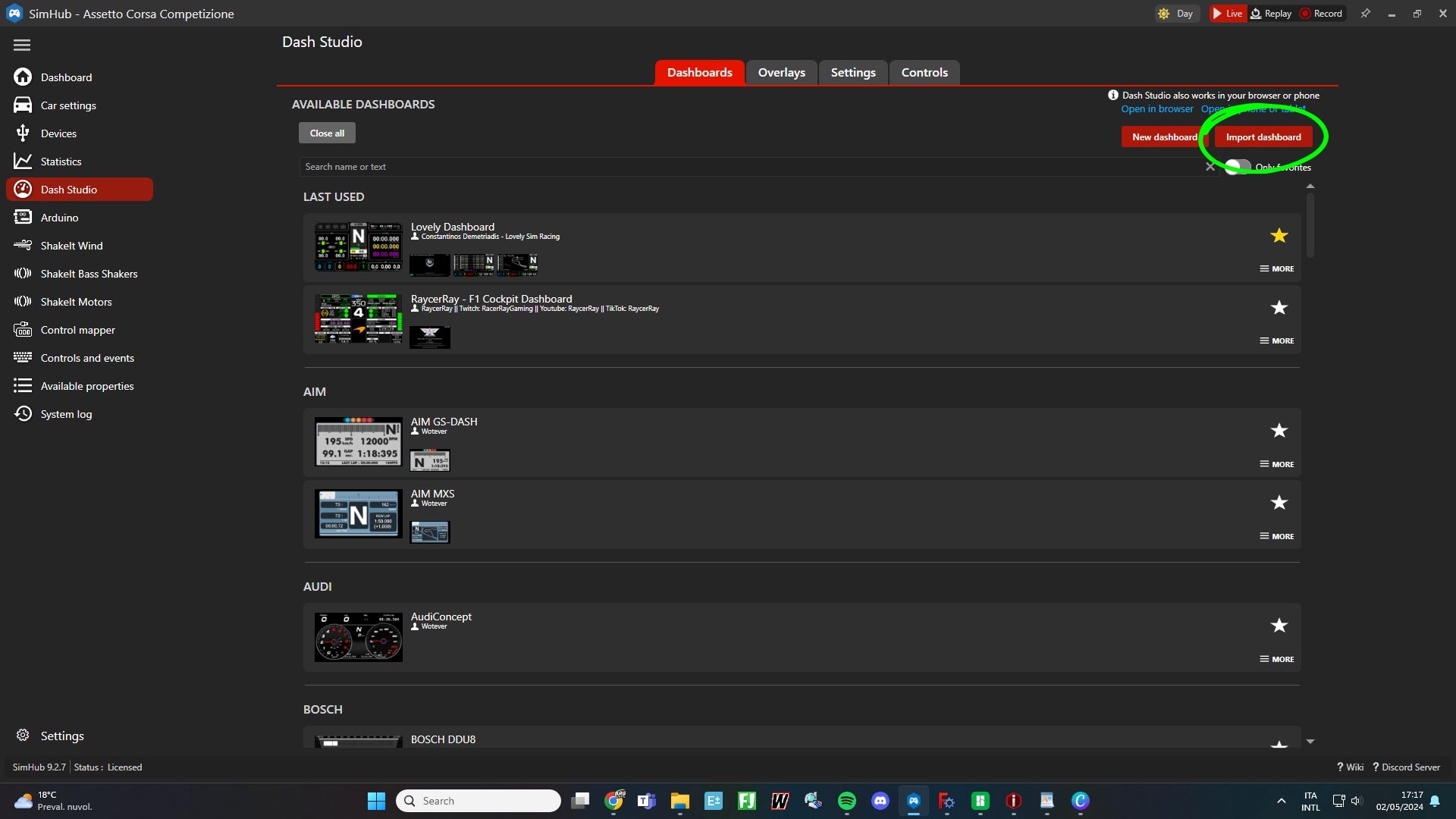
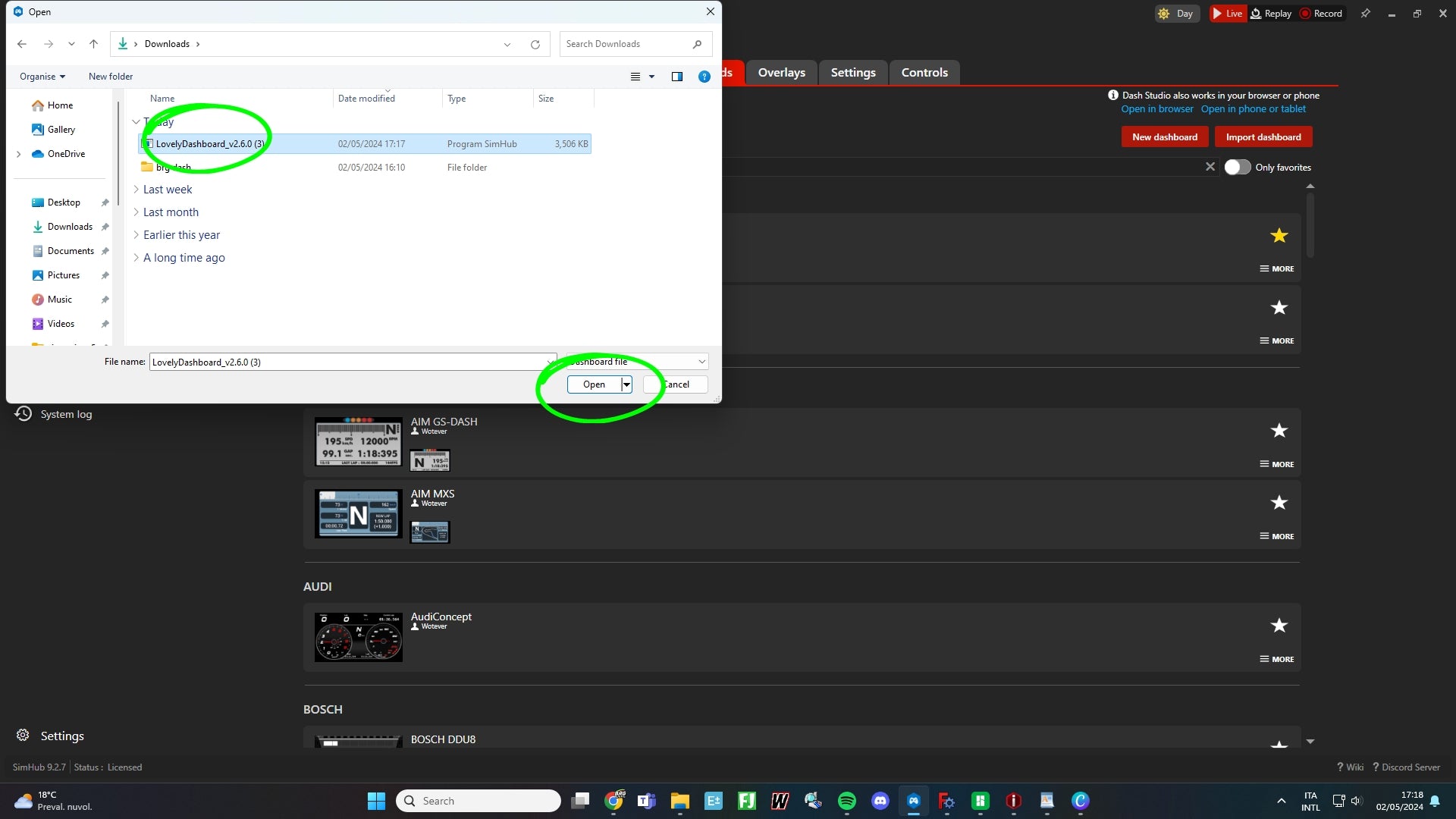
These original screenshots show the older manual-import and JavascriptExtensions workflow. They are reference images, not extra steps for the current Lovely Plugin installation.
Install or update SimHub using the official download link.
Open the official device-driver page and follow its VoCore LCD installation instructions. This applies to all three screen sizes.
Open SimHub on your PC and connect the dashboard using its USB cable.
Open Devices and choose Import device from file.
Select the extracted BRG DASH (1).shdevice file and click Open. The .shdevice file configures the device; it is not the dashboard layout itself.
Open BRG DASH, enable Connect to specific screen and choose your connected screen. Its identifier may differ from the screenshot.
Open Arduino > My Hardware and wait for the LED controller to connect. This section is only for the 5-inch dashboard.
Open Arduino > RGB LEDs > Profiles manager. Choose Import profile and select the extracted BRG DASH .ledsprofile file.
Select BRG DASH LEDS PROFILE and click Load. The 3.4-inch and 4-inch devices do not need this LED profile.
Download Dashboard Ferrari 296 SimHub from the linked OverTake resource. Follow any account or download requirements shown by that site.
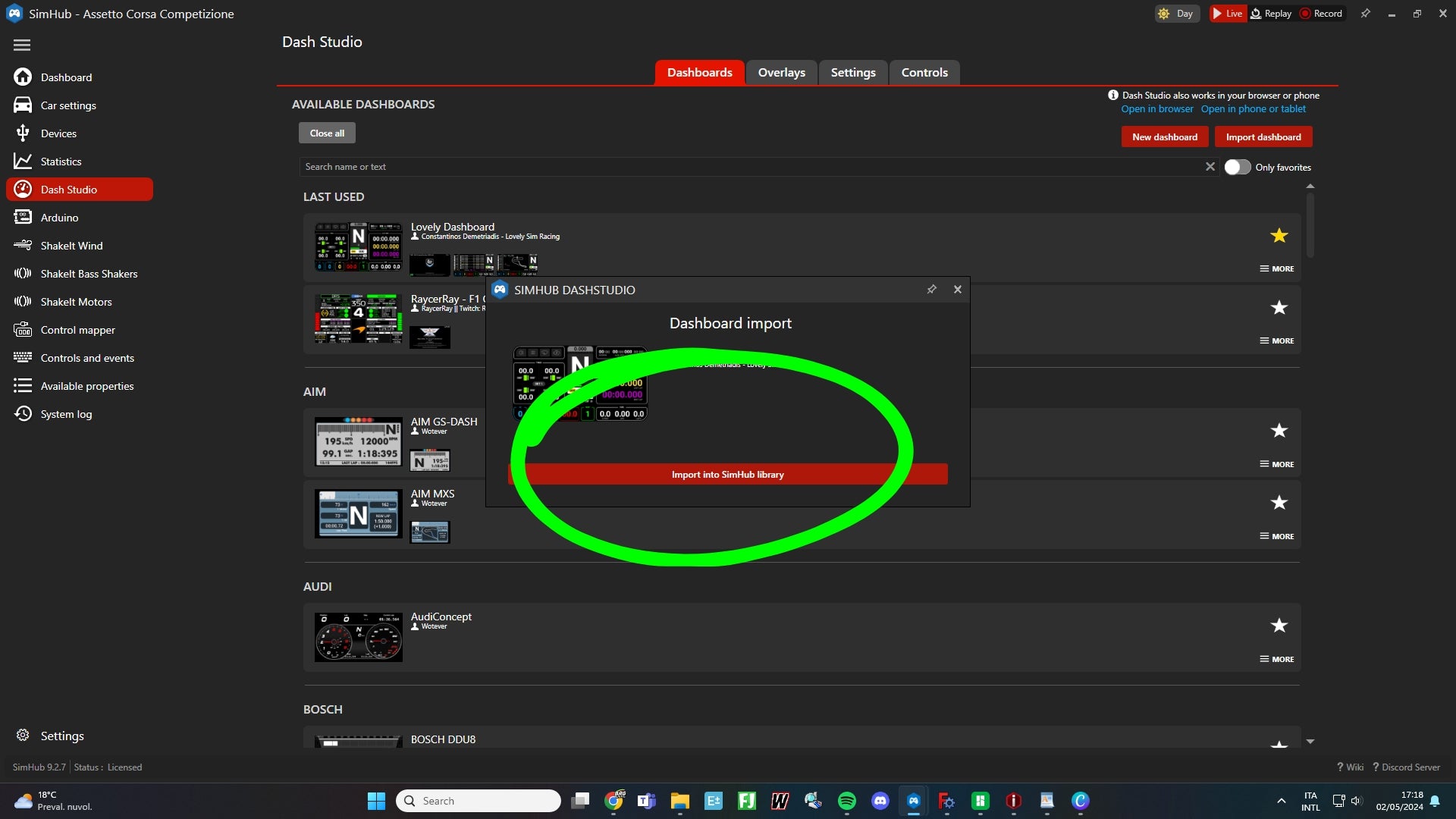
Open Dash Studio and choose Import dashboard. Select the downloaded dashboard file and click Open.
Confirm Import into SimHub library.
Open Devices > BRG DASH and select the imported Ferrari 296 dashboard as the current dashboard. The screenshot shows where to select a layout; choose Ferrari 296 instead of Lovely.
Start your game and check that the Ferrari layout and the BRG LEDs respond to the game data.
Dein Warenkorb ist leer