

Step 1 · Install SimHub
Download SimHub from the official website and complete the installation.

BRG · Setup guide
Choose your setup to see the complete tutorial and the matching downloads.
Download SimHub from the official website and complete the installation.
Open SimHub on your PC.

Open Arduino > My Hardware, select Single Arduino and wait for the device to connect.

In the Arduino section, open RGB Matrix.

Open Profiles manager, then select Import profile. Download and import the profile shown above for the selected setup.

Select the imported BRG profile, then click Load.

Adjust the information displayed by the Sim Flag in the RGB Matrix settings.
Open Games and select the game you want to use.

Launch your selected game and check that the Sim Flag shows the expected information.
Download SimHub from the official website and complete the installation.
Open SimHub on your PC.
Open Arduino > My Hardware, select Single Arduino and wait for the device to connect.
In the Arduino section, open RGB Matrix.
Open Profiles manager, then select Import profile. Download and import the profile shown above for the selected setup.
Select the imported BRG profile, then click Load.
Adjust the information displayed by the Sim Flag in the RGB Matrix settings.
Open Games and select the game you want to use.
Launch your selected game and check that the Sim Flag shows the expected information.
Open Arduino > My Hardware, select Multiple Arduino and wait for both devices to connect.

For each Sim Flag, use RGB Matrix Content to select content 1 or 2. Configure each device separately.
Use Matrix Start Position to choose the part of the matrix content shown on the first or second Sim Flag.

Download SimHub from the official website and complete the installation.
Open SimHub on your PC.
Open Arduino > My Hardware, select Single Arduino and wait for the device to connect.
In the Arduino section, open RGB Matrix.
Open Profiles manager, then select Import profile. Download and import the profile shown above for the selected setup.
Select the imported BRG profile, then click Load.
Adjust the information displayed by the Sim Flag in the RGB Matrix settings.
Open Games and select the game you want to use.
Launch your selected game and check that the Sim Flag shows the expected information.
Open Arduino > My Hardware, select Multiple Arduino and wait for both devices to connect.
In RGB Matrix Content, select 1 for the Sim Flag and 2 for the Brake Light.
The Sim Flag + Brake Light profile imported in step 5 must be selected and loaded. If the standard Sim Flag profile is active, replace it with the combined profile using the same import and load procedure.
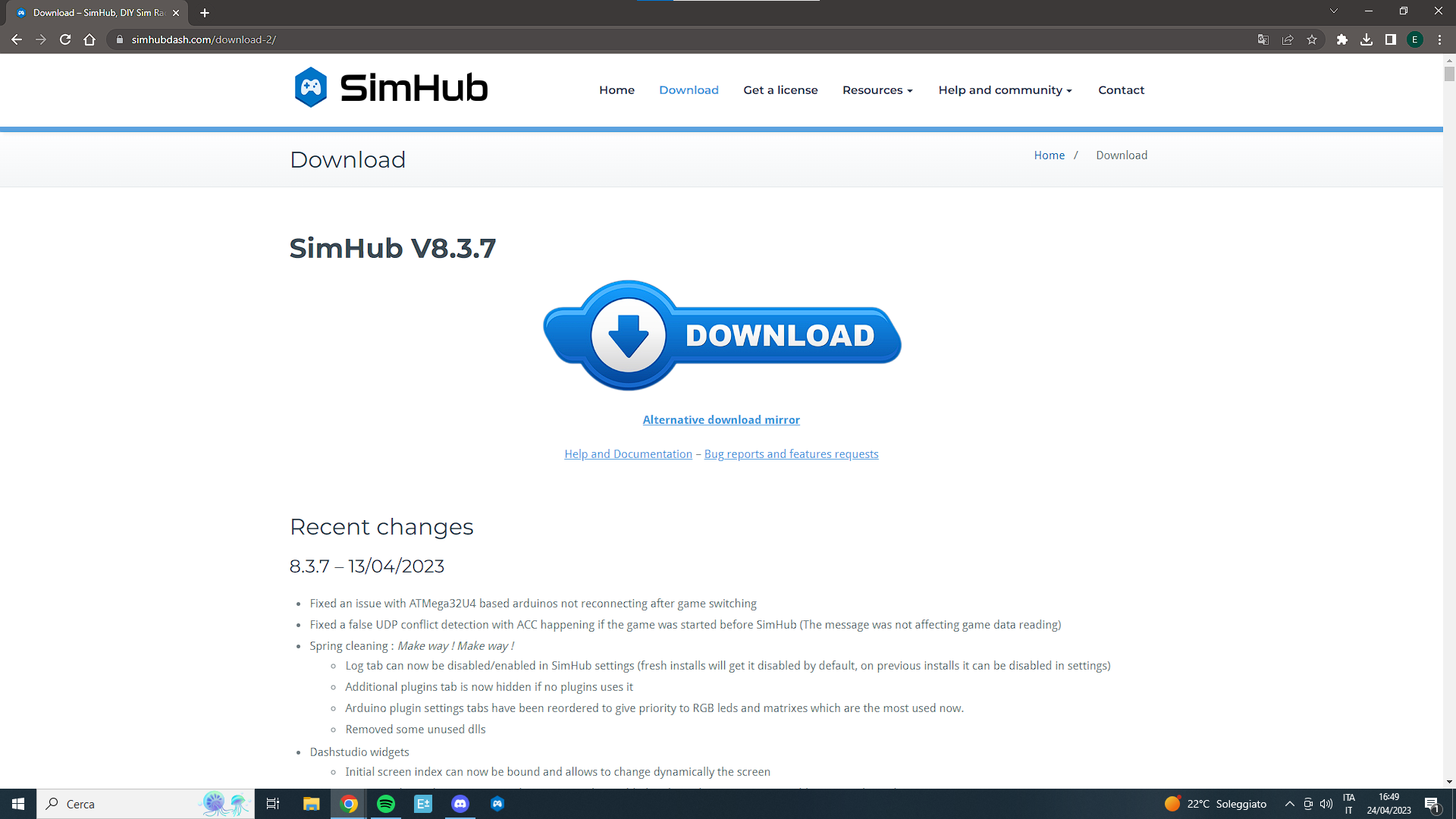
Install or update SimHub
Download and install the current version of SimHub from the official link.
Connect and open SimHub
Connect your Brake Light to your PC using its USB cable, then open SimHub.
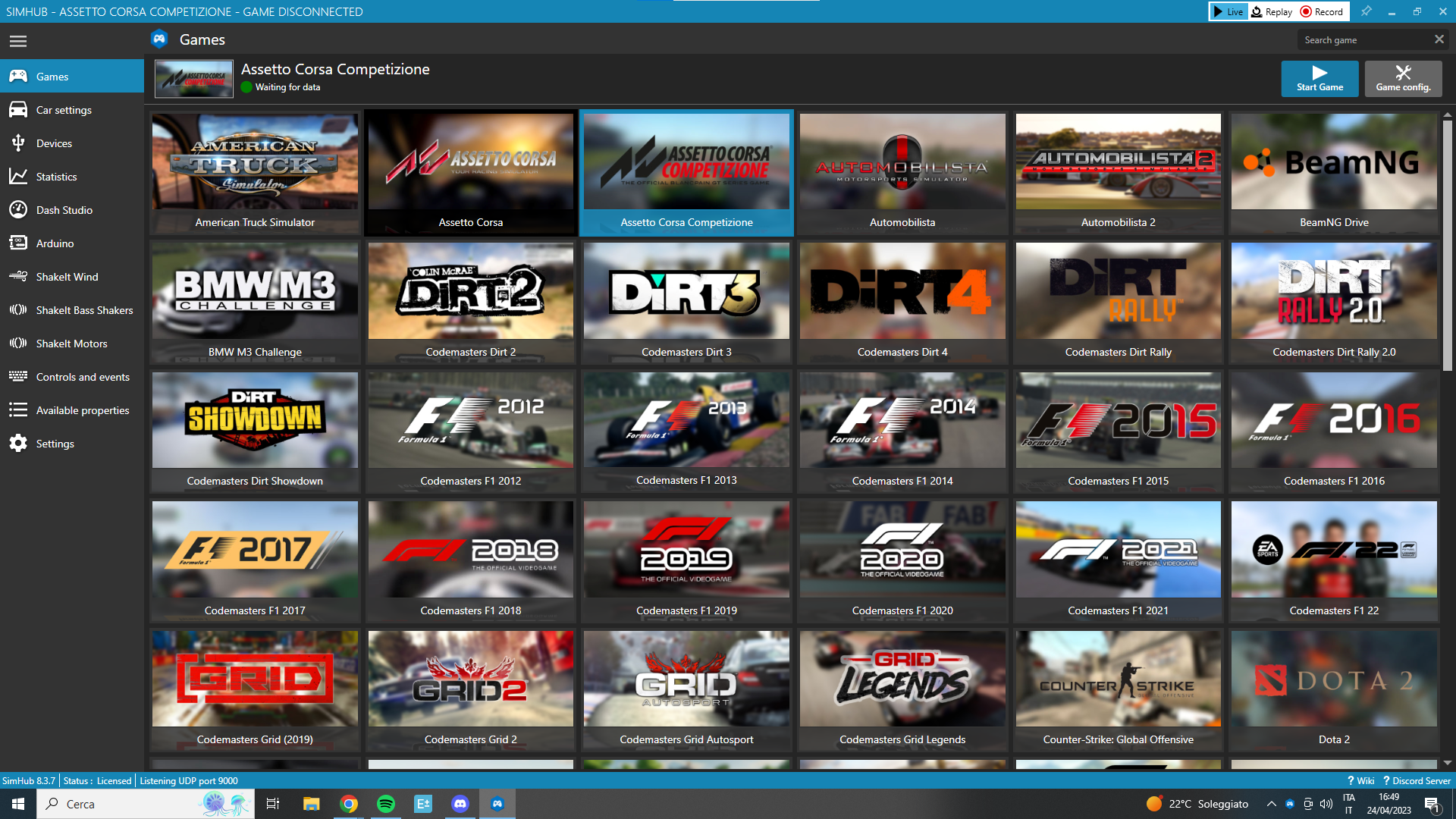
Connect the Arduino controller
Open Arduino > My Hardware, select Single Arduino and wait for the controller to connect.
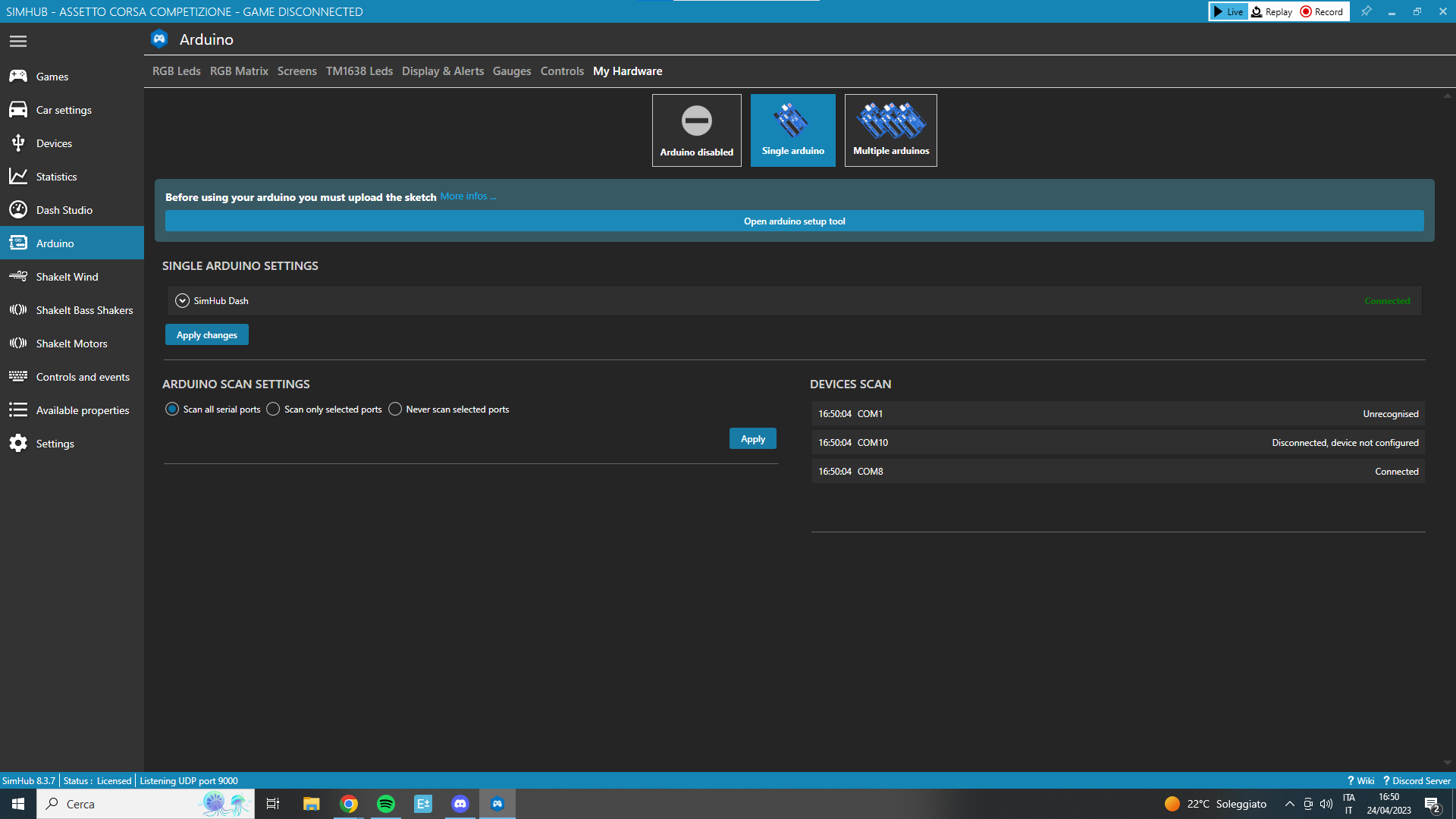
Open RGB Matrix
Click Arduino > RGB Matrix. This device uses the matrix profile manager.
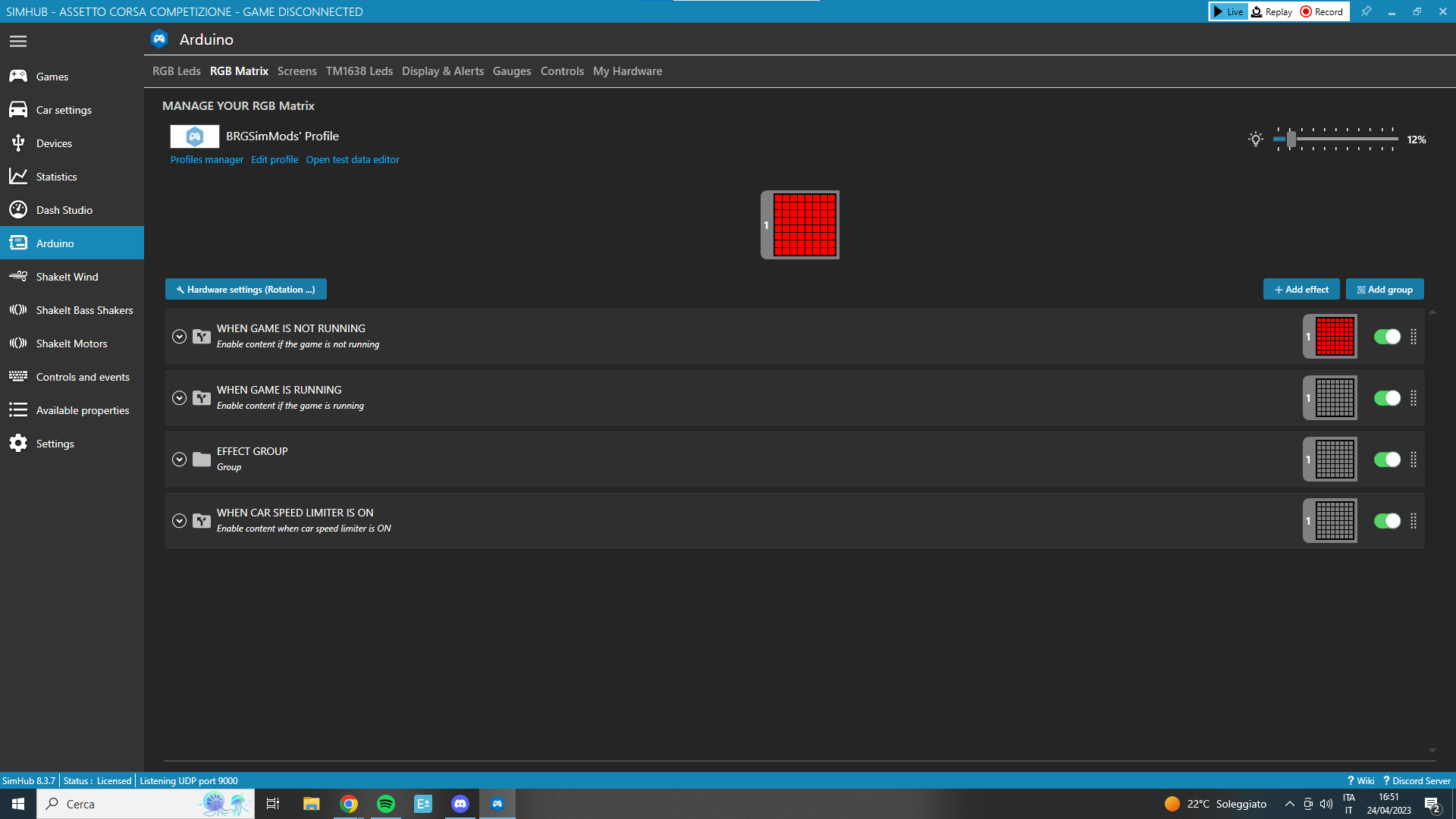
Import the Brake Light profile
Open Profiles manager and click Import profile. Select the extracted Any Game - BRGSimMods BRAKE LIGHT.ledsprofile file.
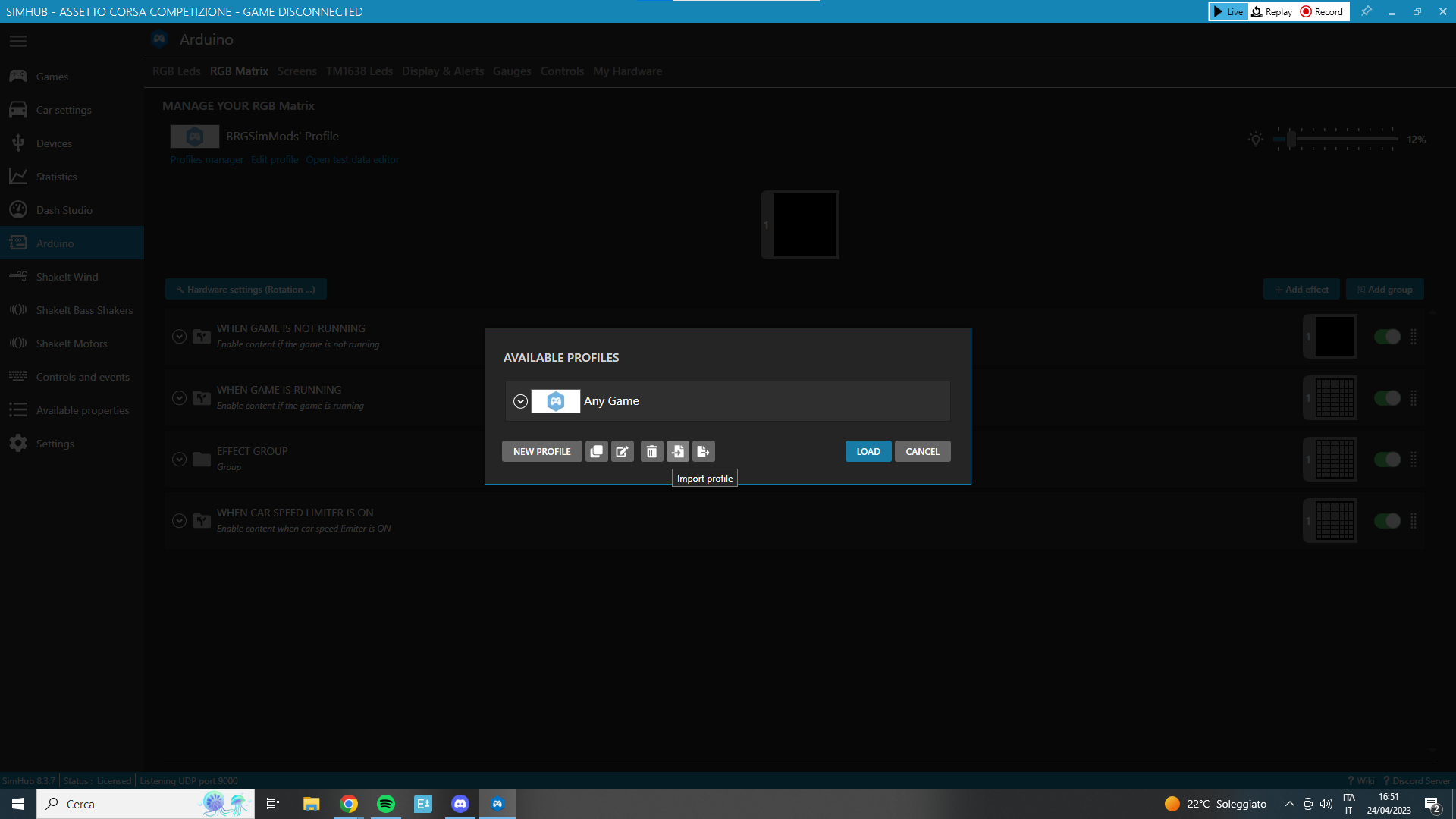
Load the profile
Select the imported BRGSimMods BRAKE LIGHT profile and click Load. Use the dedicated Brake Light profile for this standalone setup.
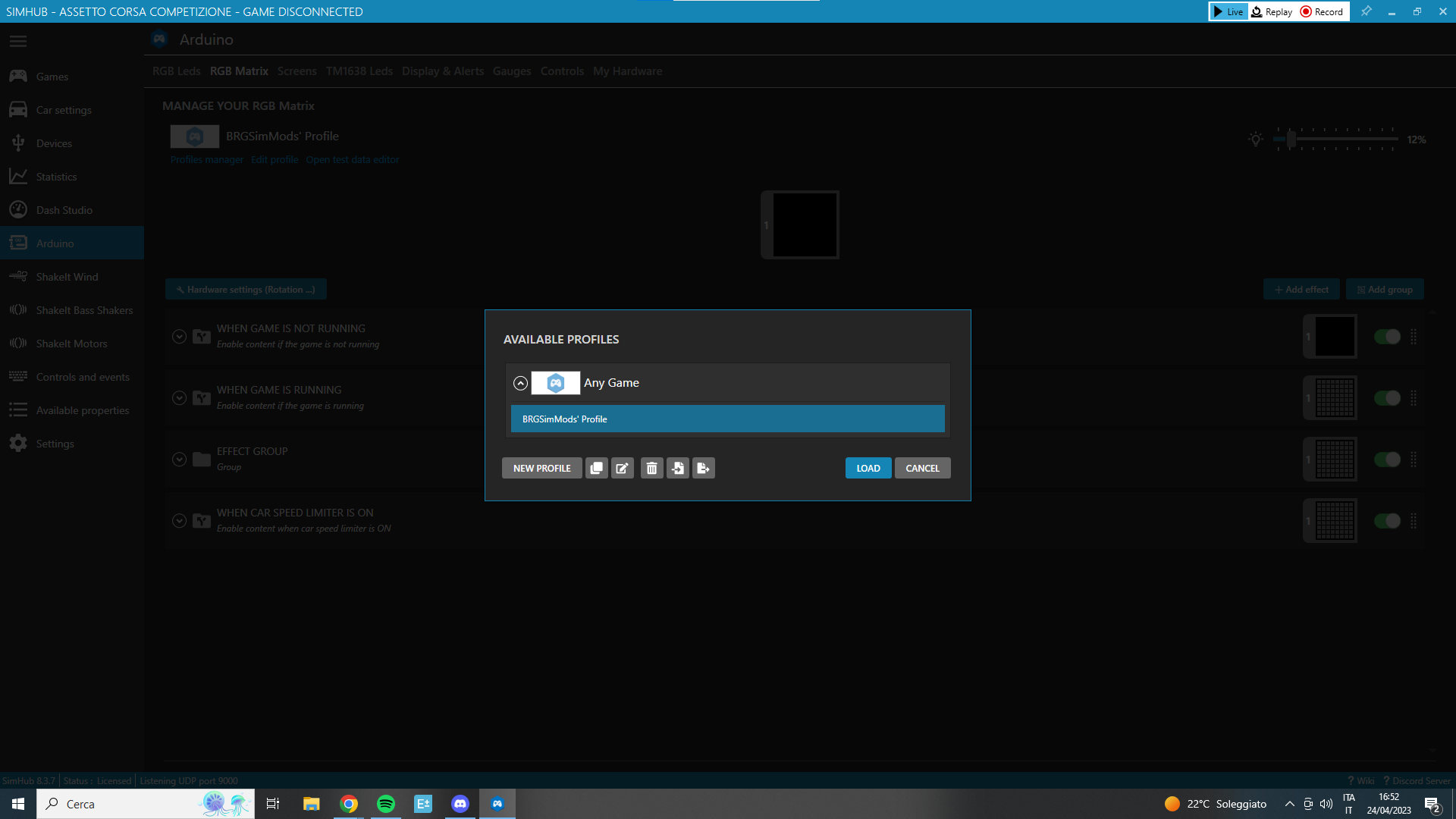
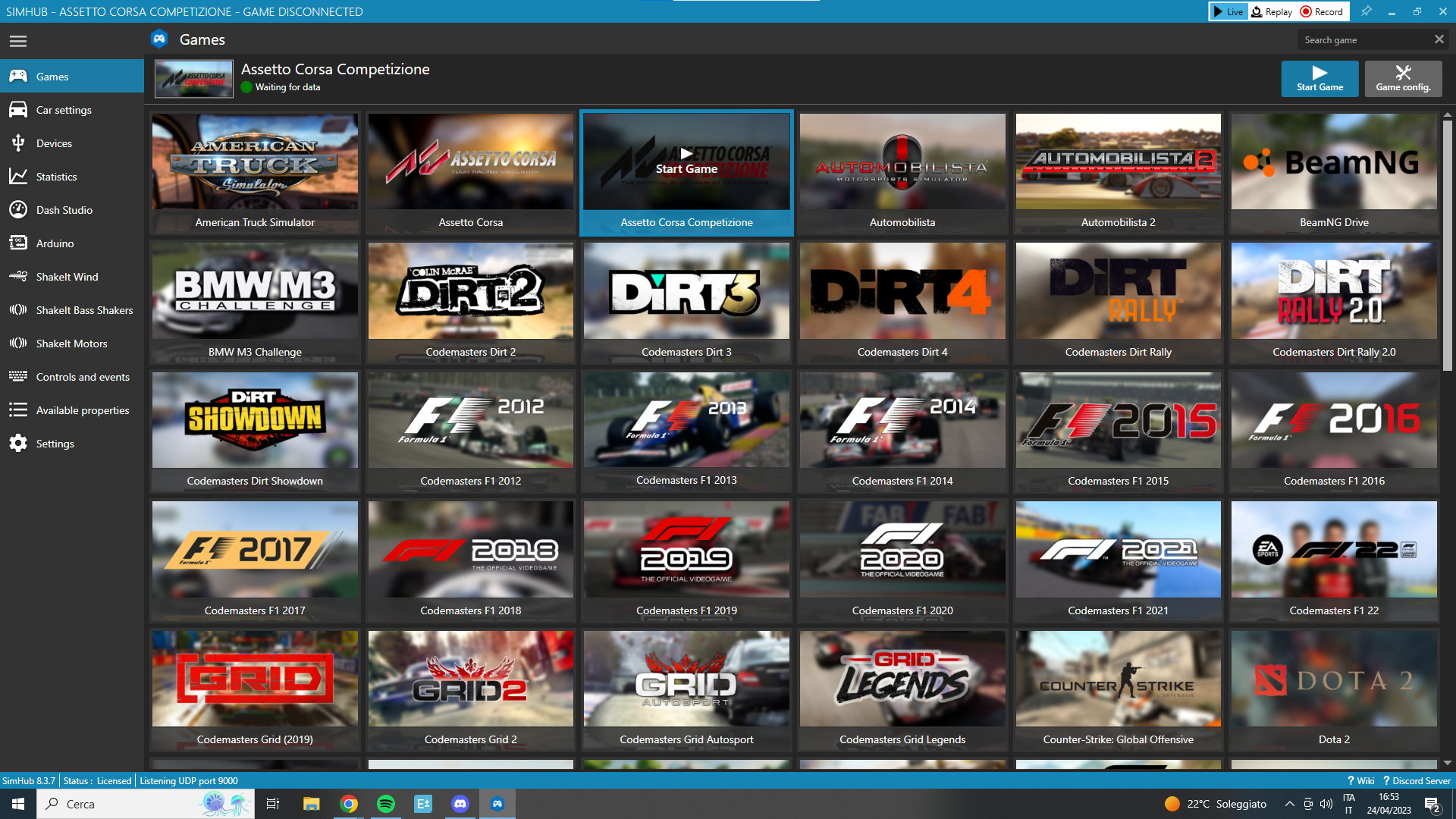
Choose your game
Open Games, choose your game and follow any configuration prompts shown by SimHub.
Test your Brake Light
Start a supported game session and press the brake pedal. Check that the light responds to braking telemetry. If it does not respond, check the Arduino connection, the loaded RGB Matrix profile and the game connection.
Dein Warenkorb ist leer