

Step 1 · Install or update SimHub
Download and install the current version of SimHub from the official link.

BRG · Setup guide
Choose your device to view its complete setup guide.
Download and install the current version of SimHub from the official link.
Open the official device-driver page and follow the VoCore LCD driver installation instructions.

Connect your device to your PC using a USB data cable, then open SimHub.

Open Devices and choose Import device from file. Extract the BRG ZIP, select BRG RACELOGIC (1).shdevice and click Open.

Open BRG RACELOGIC, enable Connect to specific screen and select your connected display. The screen identifier will differ between computers. If you own both devices, give each one its own screen ID.

Open the Full Pace Hub installation page, download and run its installer. Restart SimHub and activate the plugin when prompted.
Open Full Pace Hub > Downloads and install Pacelogic. The current provider offers a free, feature-limited Demo and a full version requiring an active membership. Choose the version available to your account.
In the Full Pace Hub device settings for Pacelogic, select the matching hardware if available. Otherwise choose Other devices and adjust positioning and scale using the official manual.
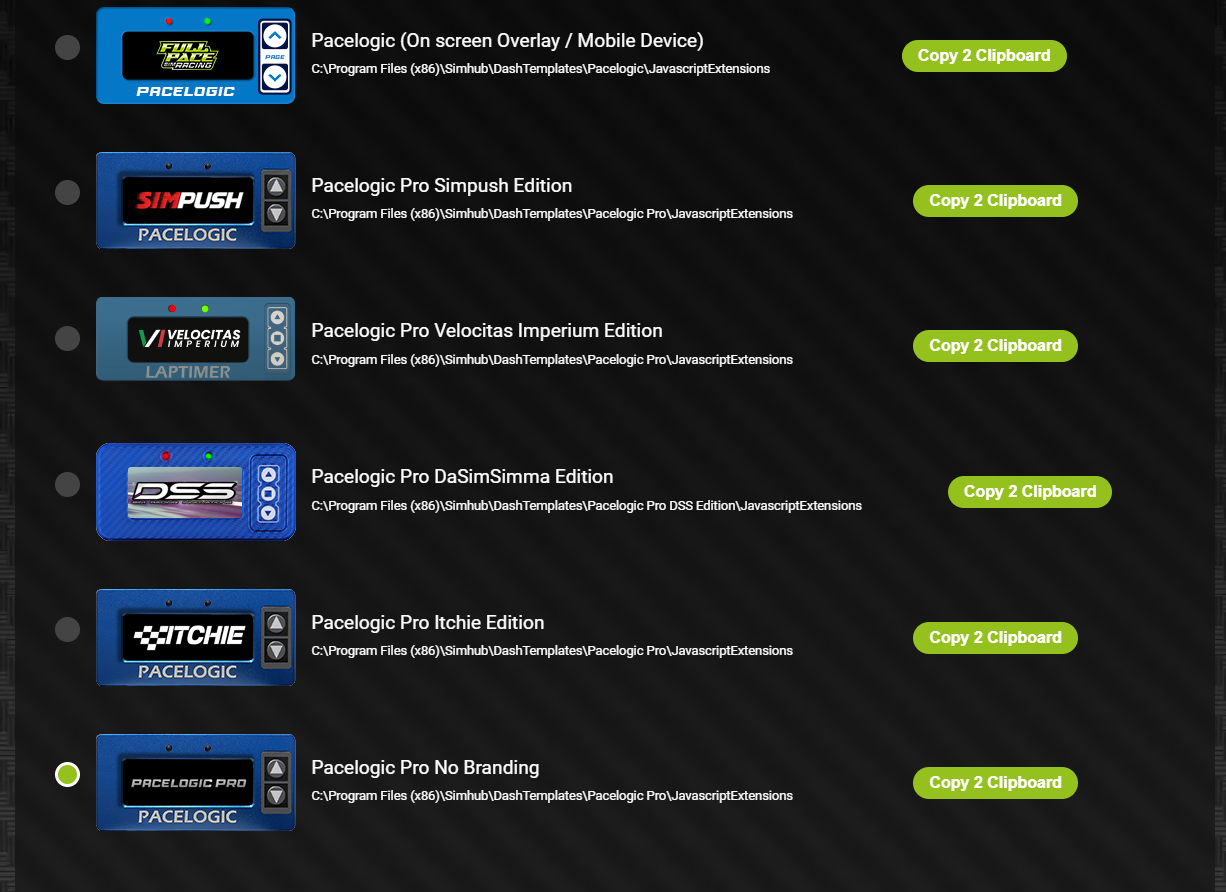
Return to Devices > BRG RACELOGIC and choose the Pacelogic layout you installed. The screenshot shows the selection location; the installed layout name may differ for the Demo.

For the current Pacelogic setup, open Settings > System info and activate the System info provider, as described in the official manual.
Start a supported game session and check that lap time and other available telemetry update. Follow the official Pacelogic manual to configure touch or button controls. Available pages depend on your game and installed dashboard version.
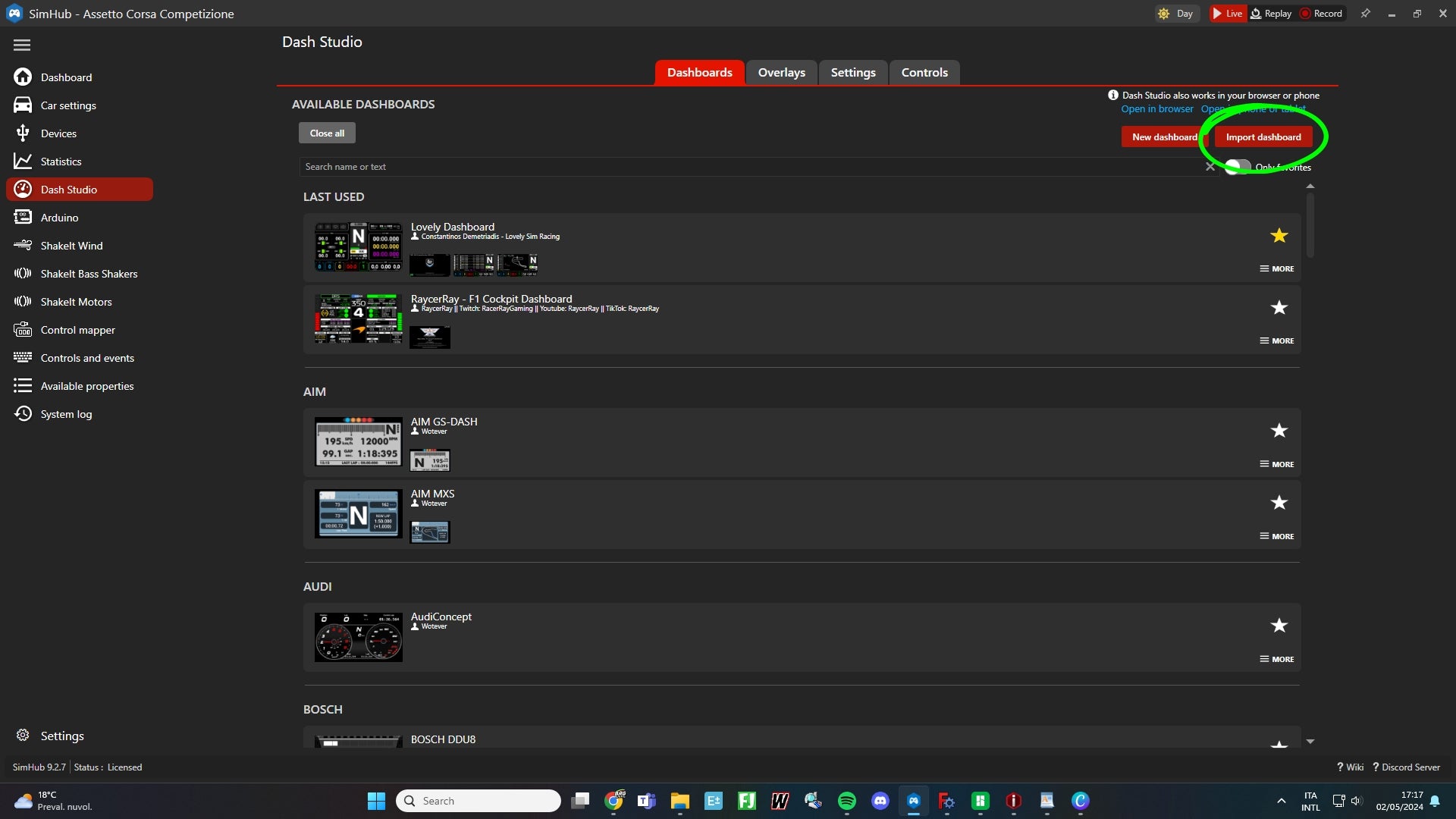
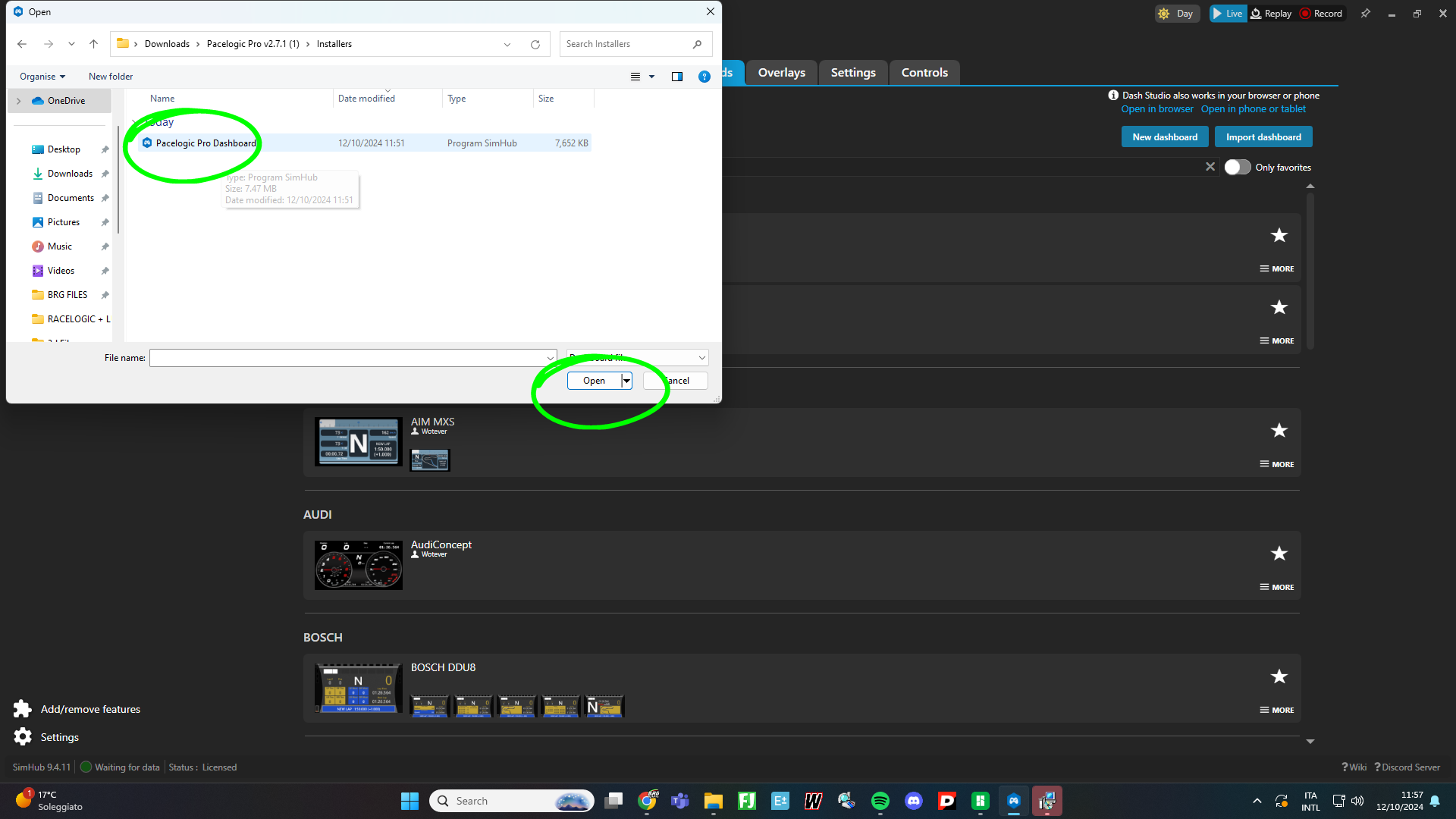
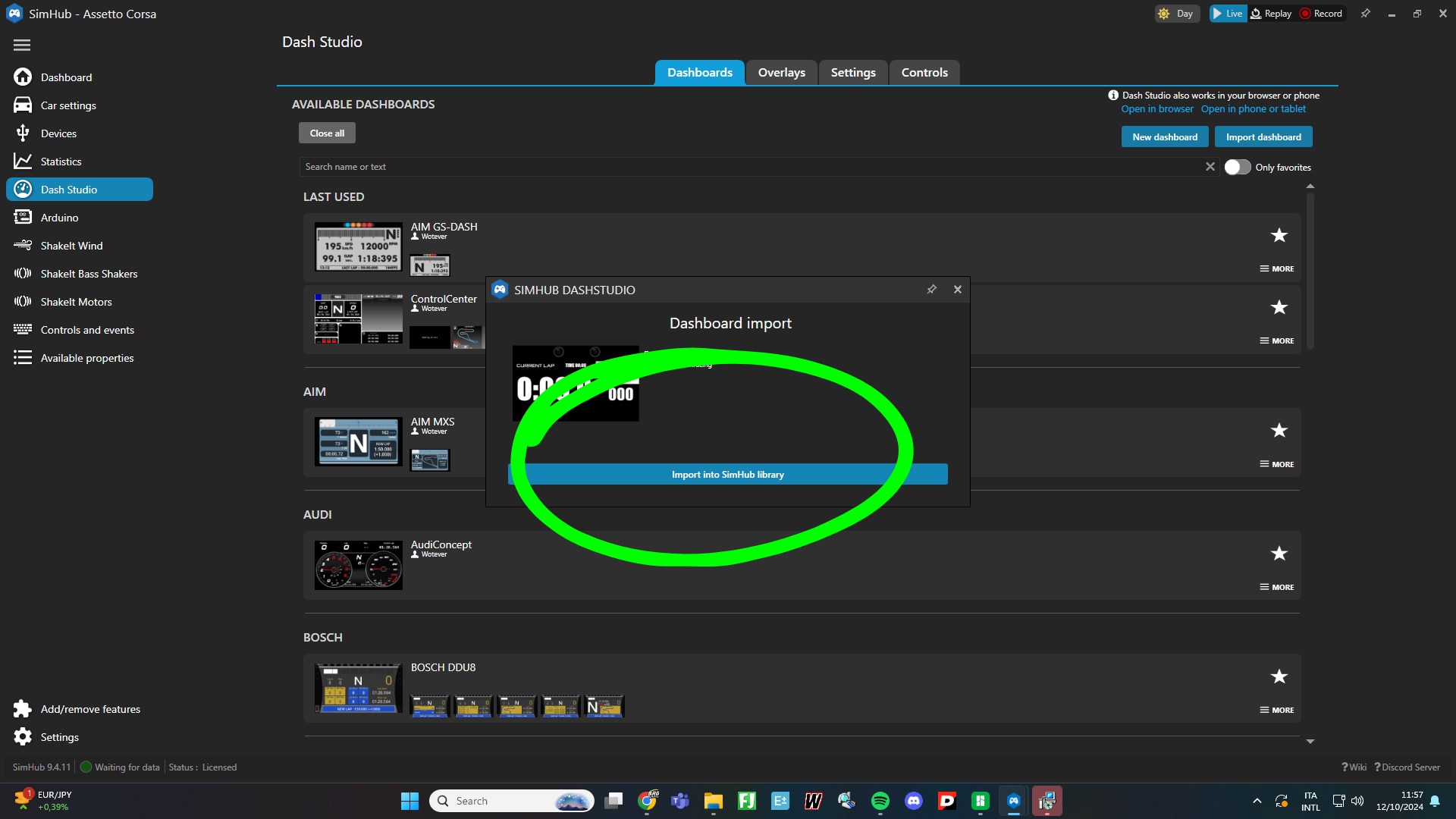
These original screenshots show the previous configurator and manual dashboard-import workflow. For a new installation, use Full Pace Hub as described above. They are references for older installations, not additional setup steps.
Download and install the current version of SimHub from the official link.

Open the official device-driver page and follow the VoCore LCD driver installation instructions.

Connect your device to your PC using a USB data cable, then open SimHub.

Open Devices and choose Import device from file. Extract the BRG ZIP, select BRG LUMIRANK (1).shdevice and click Open.

Open BRG LUMIRANK, enable Connect to specific screen and select your connected display. The screen identifier will differ between computers. If you own both devices, give each one its own screen ID.

Start a supported game session and check that the display receives telemetry. Flag and session information depend on what the game provides. If nothing appears, check the selected screen ID and that both Lovely Plugin and Lovely Flags are installed.
Download and run the Lovely Plugin installer from the official page. Restart SimHub and enable the plugin when prompted. Use the current installer rather than the older manual DLL workflow.

Use Download Lovely Flags v4.6.1 to download Lovely.Flags.simhubdash. If you use the Lovely website instead, choose Lovely Flags v4.6.1 in Secondary Dashboards. Do not choose Lovely Dashboard, Flags Round or Flags Square.

Open Dash Studio and click Import dashboard. Select the downloaded Lovely.Flags.simhubdash file and click Open.

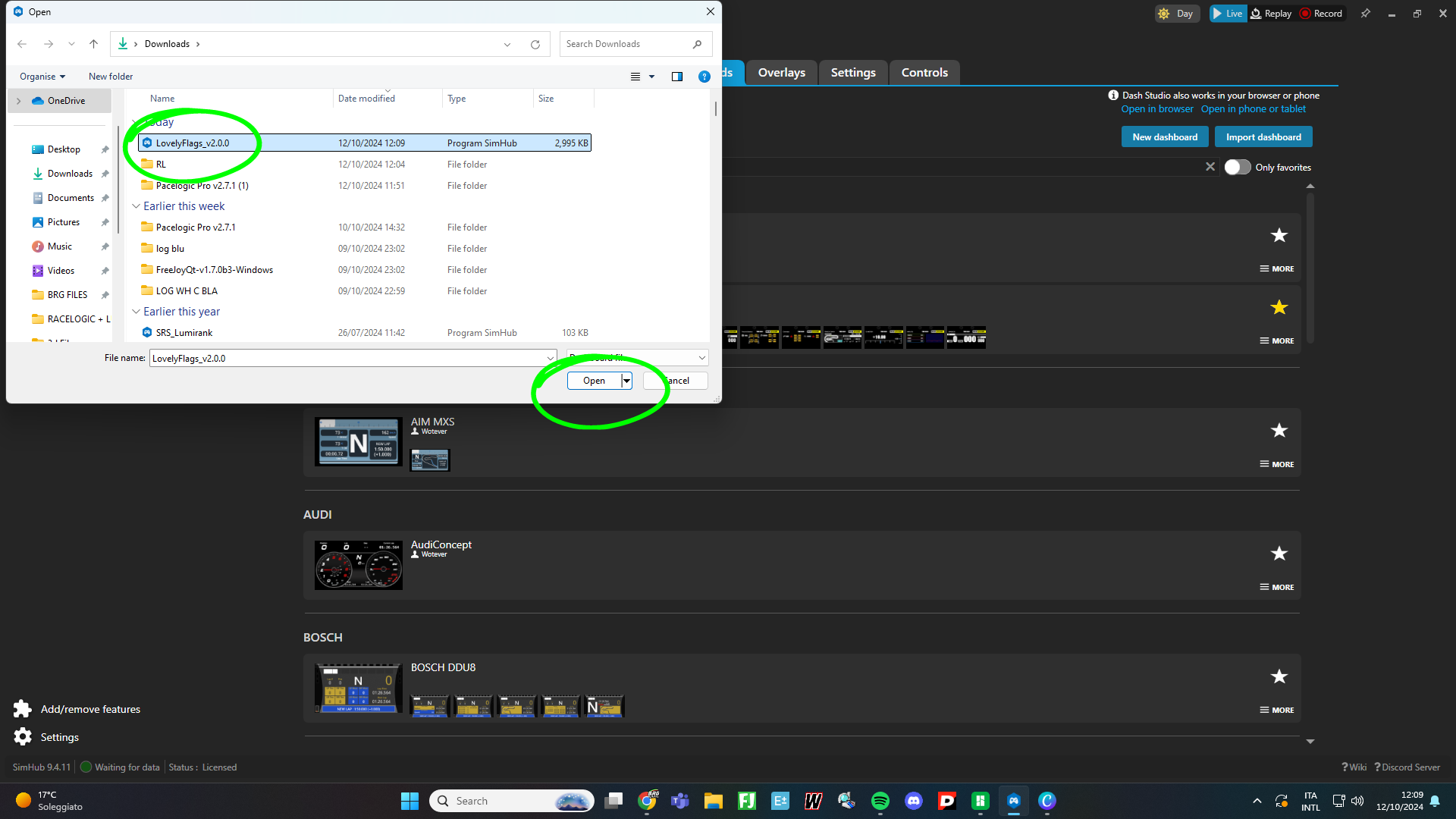
Click Import into SimHub library. This imports the layout; it does not replace your BRG device configuration.

Open Devices > BRG LUMIRANK and select Lovely Flags as the current dashboard.

Il tuo carrello è vuoto