

Step 1 · Install SimHub
Download SimHub from the official website and complete the installation.

BRG · Setup guide
LED Gear, Flag and RPM Display — complete setup guide.
Download SimHub from the official website and complete the installation.
Open SimHub on your PC.

Open Arduino > RGB LEDs, then select Profiles manager.

Select Import profile. Download the BRG profile using the link above, extract the ZIP and select the .ledsprofile file.

Select the imported BRG profile, then click Load.
You can customise the information shown by the LEDs in the RGB LEDs settings.
Open Arduino > Screens, then click Edit for the screen you want to configure.

Reproduce the screen configurations shown below. Use the three screenshots as a reference for the corresponding screens.

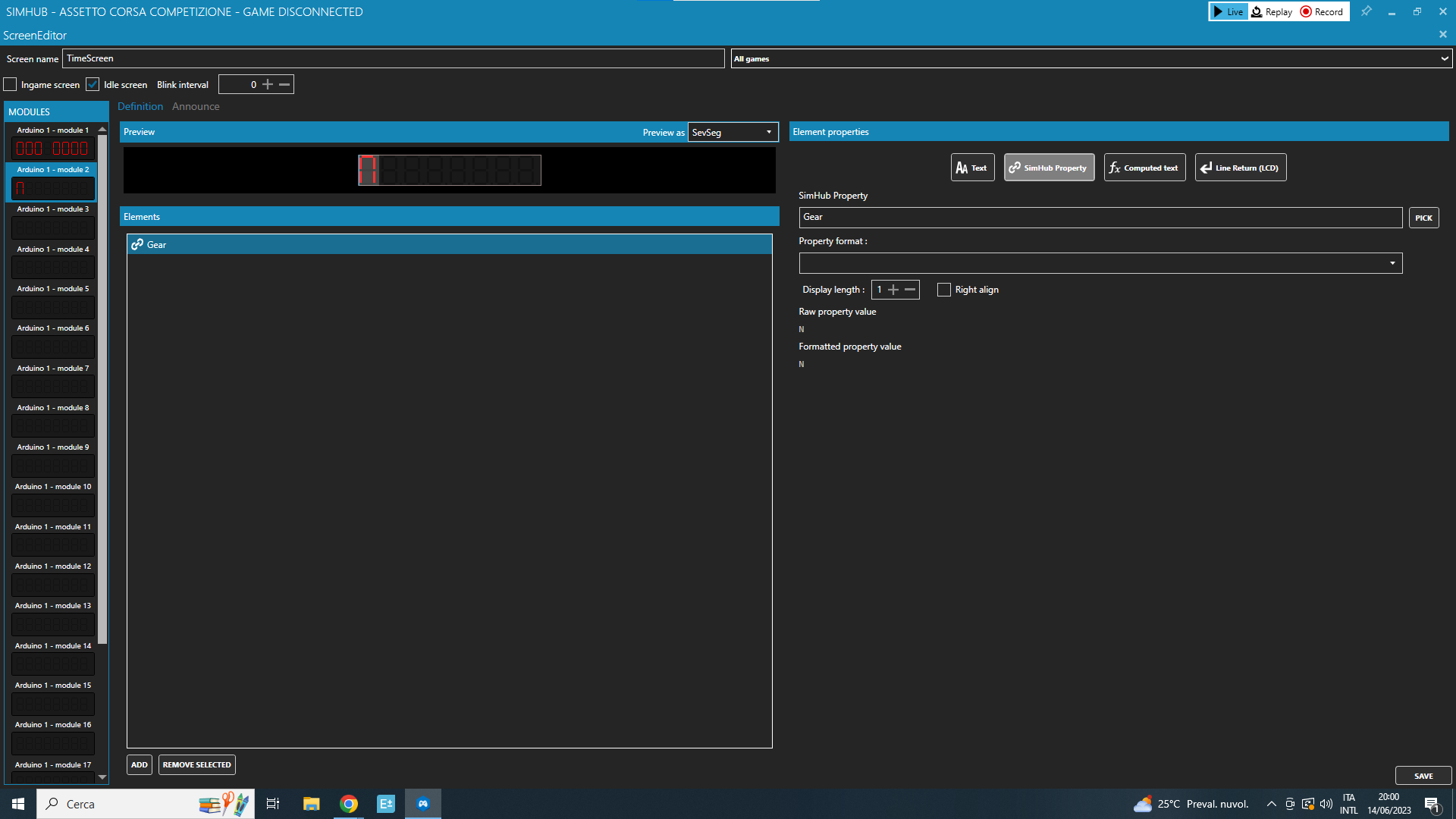
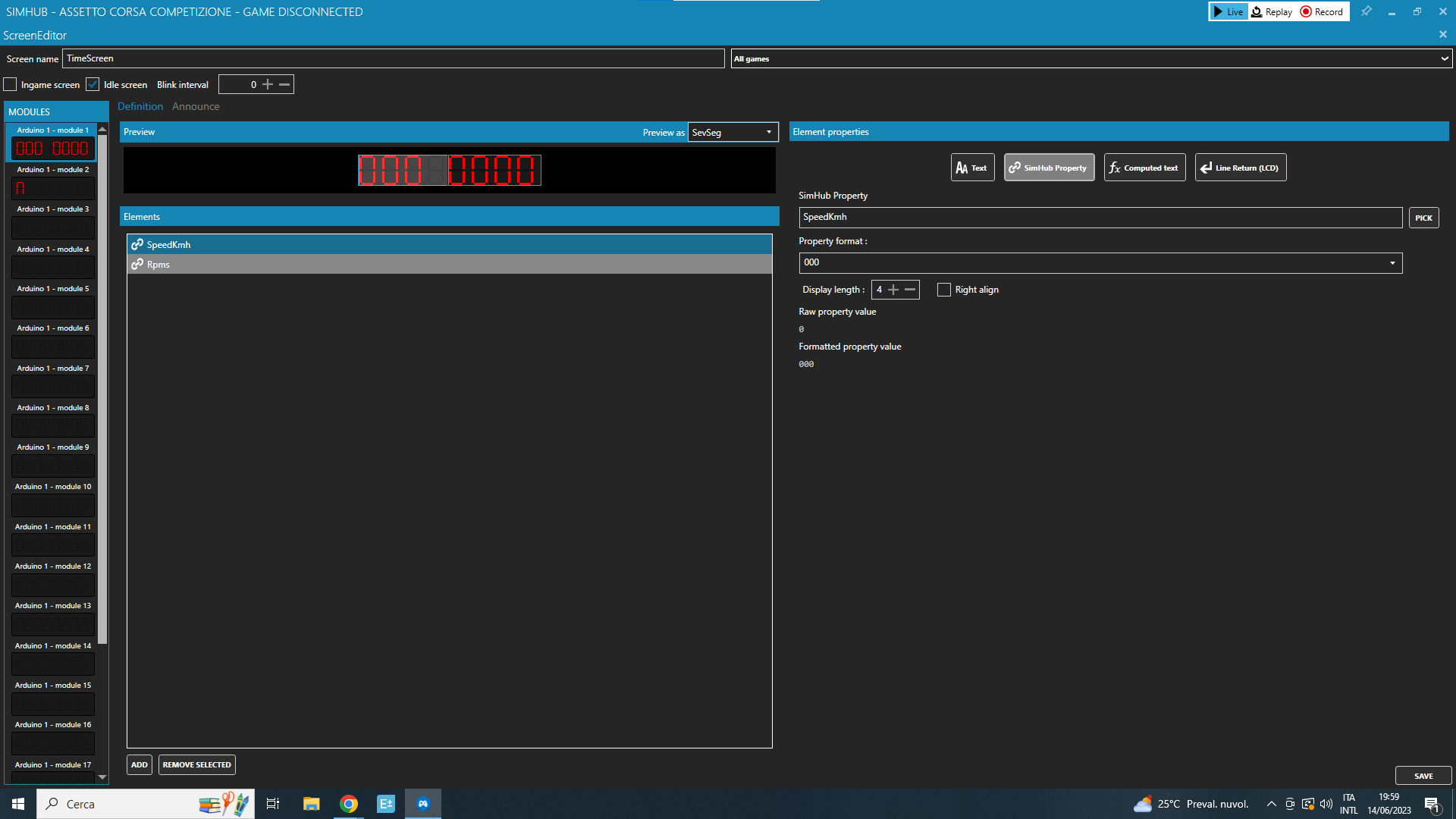
Click Save to keep the screen configuration.
Open Games, choose your game and launch it. Check that the LEDs and displays respond to the game data.

Il tuo carrello è vuoto